Tag: image

  • Div에서 이미지 가운데 맞추기

    Div에서 이미지 가운데 맞추기

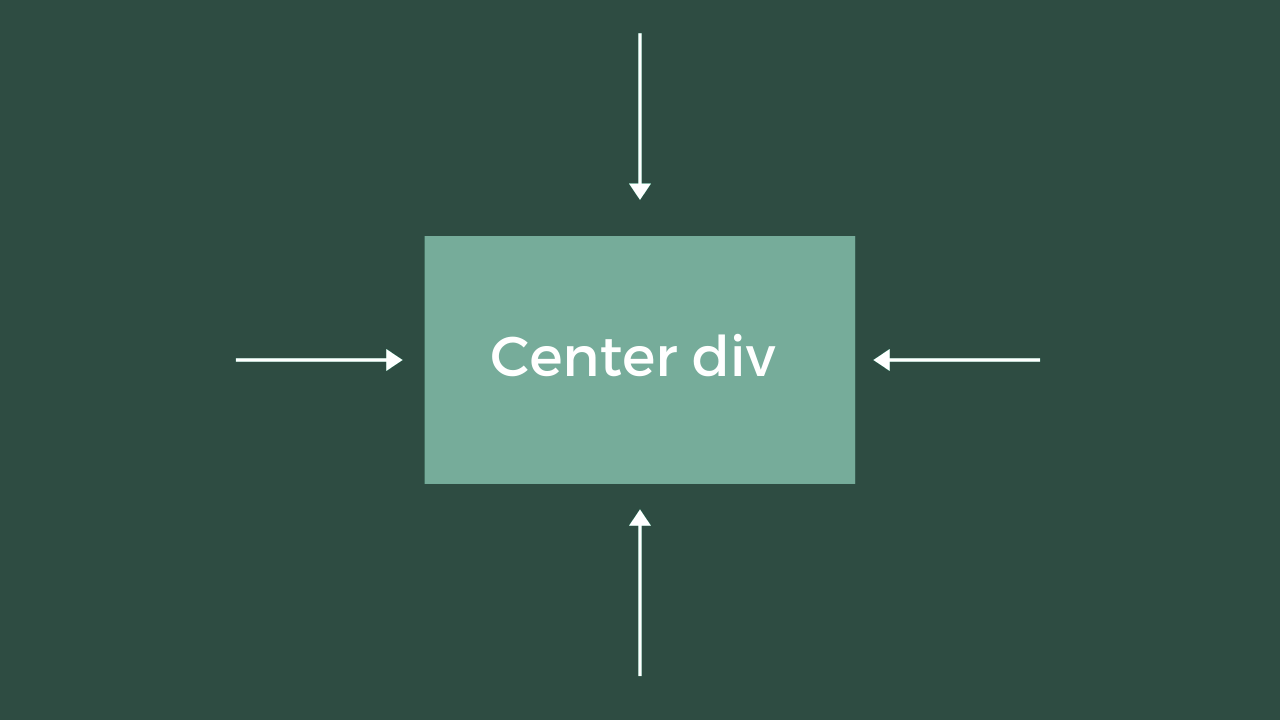
    웹 페이지의 프론트 엔드에서 작업할 때 이미지를 div(컨테이너) 내 중앙에 배치해야 하는 경우가 있습니다.

    이것은 때때로 까다로울 수 있습니다. 그리고 특정 조건에 따라 특정 방법이 어느 시점에서 작동하지 않을 수 있으므로 대안을 찾아야 합니다.

    div이 기사에서는 CSS 를 사용 하여 이미지를 중앙에 배치하는 방법을 배웁니다 .

    DIV에서 CSS를 사용하여 중앙에 배치하는 방법

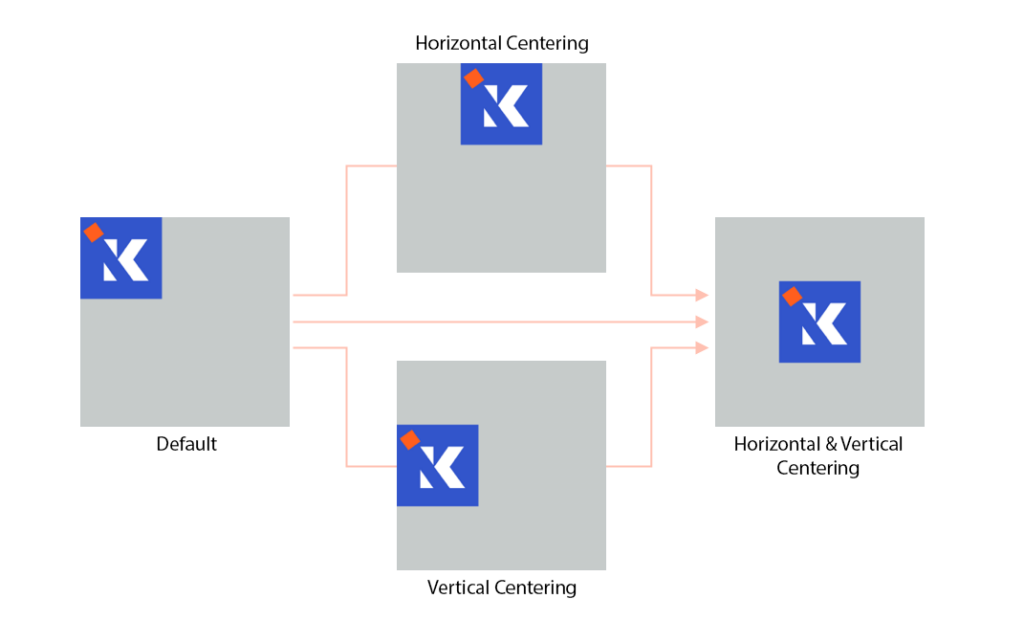
    div가로 및 세로의 두 가지 방법으로 이미지를 중앙에 배치합니다. 이 두 가지 방법을 함께 사용하면 완전히 중앙에 배치된 이미지를 갖게 됩니다.

    기본적으로 웹 콘텐츠는 항상 화면의 왼쪽 상단 모서리에서 시작하여 ltr(왼쪽에서 오른쪽으로) 이동합니다. 아랍어와 같은 특정 언어는 rtl(오른쪽에서 왼쪽으로) 제외됩니다.

    div수평 으로 이미지를 중앙에 맞추는 방법부터 시작하겠습니다 . 그런 다음 세로로 가운데 정렬하는 방법을 알아보겠습니다. 마지막으로 두 가지를 함께 수행하는 방법을 살펴보겠습니다.

    텍스트 정렬을 사용하여 Div의 이미지를 가로로 가운데에 맞추는 방법

    div다음 과 같이 이미지를 배치하는 위치 가 있다고 가정합니다 .

    <div class="container">
        <img src="./fcc-logo.png" alt="FCC Logo" />
    </div>

    이미지가 보이도록 기본 CSS 스타일을 적용합니다.

    .container {
        width: 200px;
        height: 200px;
        background-color: #0a0a23;
    }
    .container img {
        width: 100px;
    }

    이 text-align방법은 일반적으로 텍스트를 가운데에 맞추는 데 사용하므로 모든 경우에 작동하지는 않습니다. 그러나 와 같은 블록 수준 컨테이너 내에 이미지가 있는 div경우 이 방법이 작동합니다.

    .container {
        width: 200px;
        height: 200px;
        background-color: #0a0a23;
        text-align: center;
    }
    
    .container img {
        width: 100px;
    }

    이것은 이미지 자체가 아닌 컨테이너에 text-align값과 함께 속성 을 추가하여 작동 합니다.center

    Margin-auto를 사용하여 Div의 이미지를 수평으로 가운데에 맞추는 방법

    div(컨테이너) 내에서 이미지를 수평으로 중앙에 배치하는 데 사용할 수 있는 또 다른 방법 margin은 값이 인 속성입니다 auto.

    그러면 요소가 지정된 width 을 차지하고 나머지 공간은 왼쪽과 오른쪽 여백 사이에 균등하게 분할됩니다.

    일반적으로 이 방법을 컨테이너가 아닌 이미지 자체에 적용합니다. 그러나 불행히도 이 속성만으로는 작동하지 않습니다. width또한 먼저 촬영할 이미지 를 지정해야 합니다 . 이렇게 하면 여백이 컨테이너의 나머지 너비를 알 수 있으므로 균등하게 분할할 수 있습니다.

    둘째, img인라인 요소이며 margin-auto속성 집합은 인라인 수준 요소에 영향을 주지 않습니다. display즉, 속성이 로 설정된 블록 수준 요소로 먼저 변환해야 합니다 block.

    .container {
        width: 200px;
        height: 200px;
        background-color: #0a0a23;
    }
    
    .container img {
        width: 100px;
        margin: auto;
        display: block;
    }

    Position 및 Transform 속성을 사용하여 Div에서 이미지를 수평으로 가운데에 맞추는 방법

    이미지를 수평으로 배치하는 데 사용할 수 있는 또 다른 방법은 position속성 옆에 있는 transform속성입니다.

    이 방법은 매우 까다로울 수 있지만 작동합니다. 먼저 컨테이너 position를 로 설정 relative한 다음 이미지를 로 설정해야 합니다 absolute.

    left이렇게 하면 이제 이미지의 , topbottom또는 right속성을 사용하여 원하는 위치로 이미지를 이동할 수 있습니다 .

    이 경우 이미지를 가로 중앙으로만 이동하려고 합니다. 즉, 이미지를 left50% 또는 right-50%로 이동합니다.

    .container {
        width: 200px;
        height: 200px;
        background-color: #0a0a23;
        position: relative;
    }
    
    .container img {
        width: 100px;
        height: 100px;
        position: absolute;
        left: 50%;
    }

    그러나 이미지를 확인할 때 이미지가 여전히 중앙에 완벽하게 배치되지 않았음을 알 수 있습니다. 센터 포지션인 50%대부터 시작했기 때문이다.

    이 경우 transform-translateX속성을 사용하여 수평으로 완벽한 중심을 얻도록 조정해야 합니다.

    .container {
        width: 200px;
        height: 200px;
        background-color: #0a0a23;
        position: relative;
    }
    
    .container img {
        width: 100px;
        height: 100px;
        position: absolute;
        left: 50%;
        transform: translateX(-50%);
    }

    Display-Flex를 사용하여 Div의 이미지를 수평으로 가운데에 맞추는 방법

    CSS flexbox를 사용하면 부동 또는 위치 지정을 사용하지 않고도 유연하고 반응이 빠른 레이아웃 구조를 더 쉽게 디자인할 수 있습니다. 또한 이것을 사용하여 flex를 값으로 하는 display 속성을 사용하여 컨테이너의 수평 중앙에 이미지를 배치할 수 있습니다.

    그러나 이것만으로는 작동하지 않습니다. 또한 이미지를 원하는 위치를 정의해야 합니다. 이것은 center, left또는 아마도 right:

    .container {
        width: 200px;
        height: 200px;
        background-color: #0a0a23;
        display: flex;
        justify-content: center;
    }
    
    .container img {
        width: 100px;
        height: 100px;
    }

    참고: 이 display: flex속성은 이전 버전의 브라우저에서 지원되지 않습니다. 여기에서 더 많은 것을 읽을 수 있습니다 . 또한 이미지가 축소되지 않도록 이미지의 너비와 높이가 정의되어 있음을 알 수 있습니다.

    div이제 이미지를 세로 로 가운데에 맞추는 방법을 알아보겠습니다 . 나중에 우리는 이미지를 div수평 및 수직으로 중앙에 배치하여 완벽한 중앙으로 만드는 방법을 볼 것입니다.

    Display-Flex를 사용하여 수직으로 Div에서 이미지를 가운데에 맞추는 방법

    display-flex 방법으로 이미지를 수평으로 중앙에 정렬할 수 있었던 것처럼 수직으로도 동일한 작업을 수행할 수 있습니다.

    그러나 이번에는 justify-content속성을 사용할 필요가 없습니다. 오히려 다음 align-items속성을 사용합니다.

    .container {
        width: 200px;
        height: 200px;
        background-color: #0a0a23;
        display: flex;
        align-items: center;
    }
    
    .container img {
        width: 100px;
        height: 100px;
    }

    height이 방법이 작동하려면 컨테이너 에 높이를 계산하고 중심 위치를 아는 데 사용할 지정된 컨테이너가 있어야 합니다 .

    Position 및 Transform 속성을 사용하여 수직으로 Div에서 이미지를 가운데에 맞추는 방법

    position이전에 및 속성 을 사용 transform하여 이미지를 수평으로 중앙에 배치한 것과 유사하게 수직으로도 동일하게 수행할 수 있습니다.

    하지만 이번에는 left또는 를 사용하지 않습니다 right,. 대신 다음 대신 또는 top함께 bottom사용 합니다 .translateYtranslateX

    .container {
        width: 200px;
        height: 200px;
        background-color: #0a0a23;
        position: relative;
    }
    
    .container img {
        width: 100px;
        height: 100px;
        position: absolute;
        top: 50%;
        transform: translateY(-50%);
    }

    div가능한 모든 방법을 사용하여 가로 및 세로 로 이미지를 가운데에 맞추는 방법을 배웠습니다 . 이제 가로와 세로 모두 가운데 정렬하는 방법을 알아보겠습니다.

    Display-Flex를 사용하여 Div의 이미지를 가로 및 세로로 가운데에 맞추는 방법

    display-flex속성은 이미지를 세로 및 가로로 가운데에 맞추는 방법의 조합입니다 .

    justify-contentflex 메서드의 경우 다음으로 설정된 및 align-items속성을 모두 사용하게 됩니다 center.

    .container {
        width: 200px;
        height: 200px;
        background-color: #0a0a23;
        display: flex;
        justify-content: center;
        align-items: center;
    }
    
    .container img {
        width: 100px;
        height: 100px;
    }

    Position 및 Transform 속성을 사용하여 Div의 이미지를 가로 및 세로로 가운데에 맞추는 방법

    이것은 또한 매우 유사합니다. 당신이 해야 할 일은 수직 및 수평 중앙에 둘 수 있는 두 가지 방법을 결합하기만 하면 되기 때문입니다.

    .container {
        width: 200px;
        height: 200px;
        background-color: #0a0a23;
        position: relative;
    }
    .container img {
        width: 100px;
        height: 100px;
        position: absolute;
        top: 50%;
        left: 50%;
        transform: translateX(-50%) translateY(-50%);
    }

    다음 을 사용하여 translateXand 를 결합할 수도 있습니다 .translateYtranslate(x,y)

    .container {
        width: 200px;
        height: 200px;
        background-color: #0a0a23;
        position: relative;
    }
    .container img {
        width: 100px;
        height: 100px;
        position: absolute;
        top: 50%;
        left: 50%;
        transform: translate(-50%, -50%);
    }

    마무리

    이 기사에서는 div의 이미지를 세로, 가로 또는 둘 다 가운데에 맞추는 방법을 배웠습니다.

    positionFlexbox 방법 은 웹 페이지를 왜곡하고 매우 까다롭게 작동하기 때문에 이미지를 중앙으로 이동할 때 종종 Flexbox 방법을 사용합니다 .

    여기에서 CSS 위치 방법 에 대해 자세히 알아볼 수 있고 여기 에서 flexbox 방법에 대해 자세히 알아볼 수 있습니다.

    즐거운 코딩하세요!

  • 피그마 이미지 파일 최적화 방법

    피그마 이미지 파일 최적화 방법

    디자인 파일에 이미지를 추가하여 사진, 스크린샷 또는 기타 시각적 Assets을 디자인에 통합한다. Figma 는 PNG , JPEG , HEIC , GIF 및 WEBP 이미지 형식을 지원한다.

    Figma에는 이미지에 대한 특정 레이어 타입이 없으며 대신 이미지는 Fill 타입이다. 이를 통해 모든 모양 또는 벡터 네트워크에 이미지를 추가할 수 있다.

    오른쪽 사이드바의 Fill 섹션에서 이미지 채우기를 보고 업데이트 한다. Figma는 견본과 Image레이블에 있는 이미지의 썸네일을 표시한다.

    왼쪽 사이드바의 Layer 패널에서 이미지 채우기로 레이어를 식별할 수도 있다.

    • 캔버스에 이미지를 바로 추가하면 Figma는 캔버스에 원본 파일의 크기로 직사각형을 생성한다. 이미지 아이콘 및 Image레이블이다.
    • 기존 개체에 이미지를 추가하면 Figma는 레이어 아이콘과 원본 레이어의 설명을 사용한다.

    파일에 이미지 추가

    이미지는 채우기이므로 모든 벡터 또는 모양에 추가할 수 있다. 이를 통해 유연성과 제어력이 향상된다. 디자인 파일에 이미지를 추가하는 방법에는 여러 가지가 있다.

    • 컴퓨터에서 캔버스로 이미지 파일을 끌어다 놓는다. Figma는 이미지 크기의 새 직사각형을 만들고 이미지를 채우기로 적용한다.
    • 이미지 파일을 파일 브라우저로 가져온다. Figma는 이미지가 직사각형으로 추가된 프로젝트에서 새 디자인 파일을 생성한다.
    • 장소(Place)를 사용하여 디자인에 여러 이미지를 일괄 추가한다. 이미지를 추가할 레이어를 선택한다. 일괄 이미지 배치 →
    • 색상 선택기에서 이미지 가져오기를 사용한다. 이미지 채우기 업로드 →
    • 현재 파일의 다른 레이어나 다른 파일에서 이미지를 복사한다. 레이어 간 이미지 복사 및 붙여넣기 →
    • 클립보드의 이미지를 캔버스에 붙여넣는다. 다운로드 및 업로드 없이 웹에서 이미지를 복사한다. 캔버스에 이미지 붙여넣기 →

    이미지 편집

    이미지를 편집하거나 조정하는 방법에는 여러 가지가 있다.

    • 이미지가 있는 모든 레이어의 크기 조정(scale), 회전(rotate) 및 수정(adjust)
    • 레이어에 적용된 이미지 자르기(crop) 및 재배치(re-position)
    • 채우기 모드(fill mode), 회전(rotation) 및 혼합 모드(blend mode)를 포함한 이미지 옵션 조정
    • 스타일(Styles) 및 구성 요소(Components)에 이미지 포함
    • 마스크(Masks)를 적용 하여 이미지의 일부만 표시
    • 색조(Hue), 채도(Saturation) 또는 대비(Contrast) 변경과 같은 이미지 조정
  • HTML 이미지 표현 방법

    HTML 이미지 표현 방법

    HTML 문서에 이미지 적용방법입니다.

    img 객체 사용방법

    <!DOCTYPE html>
    <html>
    <head>
        <meta charset="utf-8">
        <title>Images: img</title>
        <style>
            body {
                font-size: 20px;
            }
            article {
                width: 480px;
                margin: auto;
            }
            h1 {
                text-align: center;
            }
        </style>
    </head>
    <body>
        <article>
    
            <h1>Images</h1>
            <p>HTML images, inserted using the <code>img</code> tag, are used for meaningful content.</p>
            <img src="./img/ecuador_anaconda.jpg" width="480" height="287" alt="Anaconda">
            <p>Lorem ipsum dolor sit amet, consectetur adipisicing elit, sed do eiusmod tempor incididunt ut labore et dolore magna aliqua.</p>
            <img src="./img/ecuador_tarantula.jpg" width="480" height="360" alt="Tarantula">
            <p>Lorem ipsum dolor sit amet, consectetur adipisicing elit, sed do eiusmod tempor incididunt ut labore et dolore magna aliqua. Ut enim ad minim veniam, quis nostrud exercitation ullamco laboris nisi ut aliquip ex ea commodo consequat.</p>
            <img src="./img/ecuador_owlMonkeys.jpg" width="480" height="315" alt="Owl monkeys">
        </article>
    
    </body>
    </html>

    배경 이미지 : background-image

    <!DOCTYPE html>
    <html>
    <head>
        <meta charset="utf-8">
        <title>Images: background-image</title>
        <style>
            body {
                color: #fc6;
                background-color: #c72;
                background-image: url("./img/bg.gif");;
                font-size: 20px;
                margin: 0;
            }
            article {
                width: 480px;
                padding: 20px;
                margin: auto;
                background-color: rgba(0,0,0,.2);
            }
            h1 {
                text-align: center;
            }
            a {
                color: white;
            }
        </style>
    </head>
    <body>
        <article>
            <h1>Images</h1>
            <p>CSS images, applied using the <code>background-image</code> property, are used for decoration.</p>
            <p>HTML images, inserted using the <code>img</code> tag, are used for meaningful content.</p>
            <img src="./img/ecuador_anaconda.jpg" width="480" height="287" alt="Anaconda">
            <p>Lorem ipsum dolor sit amet, consectetur adipisicing elit, sed do eiusmod tempor incididunt ut labore et dolore magna aliqua.</p>
            <img src="./img/ecuador_tarantula.jpg" width="480" height="360" alt="Tarantula">
            <p>Lorem ipsum dolor sit amet, consectetur adipisicing elit, sed do eiusmod tempor incididunt ut labore et dolore magna aliqua. Ut enim ad minim veniam, quis nostrud exercitation ullamco laboris nisi ut aliquip ex ea commodo consequat.</p>
            <img src="./img/ecuador_owlMonkeys.jpg" width="480" height="315" alt="Owl monkeys">
        </article>
    </body>
    </html>

    배경 위치 지정 : background-position 속성 사용

    <!DOCTYPE html>
    <html>
    <head>
        <meta charset="utf-8">
        <title>Positioning backgrounds</title>
        <style>
            body {
                font: 14px courier;
                background-color: #fff;
                color: #000;
                margin: 0;
                padding: 10px;
            }
            p {
                background-color: #ccc;
                background-image: url("./img/bg.gif") no-repeat;
                height: 200px;
                text-align: center;
                margin: 20px;
            }
            code {
                background-color: white;
                padding: 0 15px 2px;
            }
            
            #p0 {
                background: none;
                height: auto;
            }
            #p1 {
                background-position: center;
            }
            #p2 {
                background-position: right;
            }
            #p3 {
                background-position: bottom left;
            }
            #p4 {
                background-position: 20px;
            }
            #p5 {
                background-position: 50%;
            }
            #p6 {
                background-position: 75% 25px;
            }
            #p7 {
                background-position: top 99px right 9px;
            }
        </style>
    </head>
    <body>
        <p id="p0">In addition to <code>background-repeat: no-repeat</code>…</p>
        <p id="p1"><code>background-position: center;</code></p>
        <p id="p2"><code>background-position: right;</code></p>
        <p id="p3"><code>background-position: bottom left;</code></p>
        <p id="p4"><code>background-position: 20px;</code></p>
        <p id="p5"><code>background-position: 50%;</code></p>
        <p id="p6"><code>background-position: 75% 25px;</code></p>
        <p id="p7"><code>background-position: top 99px right 9px;</code></p>
    </body>
    </html>

    반복되는 배경 이미지 : background-repeat 속성 사용

    <!DOCTYPE html>
    <html>
    <head>
        <meta charset="utf-8">
        <title>background-repeat</title>
        <style>
            body {
                font: 14px courier;
                background: #fff;
                color: #000;
                margin: 0;
                padding: 10px;
            }
        
            p {
                background-color: #ccc;
                background-image: url("./img/bg.gif");
                margin: 10px;
                width: 300px;
                height: 300px;
                float: left;
                text-align: center;
            }
            code {
                background: white;
                padding: 0 15px 2px;
            }
            #p1 {
                background-repeat: repeat;
            }
            #p2 {
                background-repeat: no-repeat;
            }
            #p3 {
                background-repeat: repeat-x;
            }
            #p4 {
                background-repeat: repeat-y;
            }
            #p5 {
                background-repeat: space;
            }
            #p6 {
                background-repeat: round;
            }
        </style>
    </head>
    <body>
        <p id="p1"><code>background-repeat: repeat;</code></p>
        <p id="p2"><code>background-repeat: no-repeat;</code></p>
        <p id="p3"><code>background-repeat: repeat-x;</code></p>
        <p id="p4"><code>background-repeat: repeat-y;</code></p>
        <p id="p5"><code>background-repeat: space;</code></p>
        <p id="p6"><code>background-repeat: round;</code></p>
    </body>
    </html>

    배경 첨부 : 스크롤하는 내용으로 백그라운드가 작동하는 방식

    <!DOCTYPE html>
    <html>
    <head>
        <meta charset="utf-8">
        <title>background-attachment</title>
        <style>
            body {
                font: 20px courier;
                background-image: url("./img/bg.gif");
                background-color: #c72;
                background-attachment: fixed;
                color: #fff;
                margin: 20px;
                text-align: center;
            }
            article {
                max-width: 500px;
                margin: 0 auto;
            }
            h1 {
                font-size: 30px;
                margin: 80px 0;
            }
            h2 {
                font-size: 20px;
            }
            code {
                background: rgba(0,0,0,.25);
                padding: 0 15px 2px;
            }
        
            p {
                background-image: url("./img/x.png");
                height: 300px;
                padding: 20px;
                margin-bottom: 80px;
                overflow: auto;
            }
            #p1 {
                background-attachment: scroll;
            }
            #p2 {
                background-attachment: fixed;
            }
            #p3 {
                background-attachment: local;
            }
        </style>
    </head>
    <body>
        <article>
            <h1><code>background-attachment</code></h1>
            <h2><code>background-attachment: scroll;</code></h2>
            <p id="p1">Lorem ipsum dolor sit amet, consectetur adipiscing elit. Sed sollicitudin, nulla id efficitur condimentum, nisi eros rutrum arcu, vitae egestas tortor arcu eget lacus. Maecenas velit neque, blandit fringilla fringilla vitae, posuere eu enim. In hac habitasse platea dictumst. Praesent pretium ante nec massa sollicitudin rhoncus. Sed laoreet metus quam, vel congue nisi dictum pellentesque. Curabitur egestas augue nulla, sit amet mattis turpis finibus vitae. Duis varius neque sed venenatis aliquet. Lorem ipsum dolor sit amet, consectetur adipiscing elit. Sed sollicitudin, nulla id efficitur condimentum, nisi eros rutrum arcu, vitae egestas tortor arcu eget lacus. Maecenas velit neque, blandit fringilla fringilla vitae, posuere eu enim. In hac habitasse platea dictumst. Praesent pretium ante nec massa sollicitudin rhoncus. Sed laoreet metus quam, vel congue nisi dictum pellentesque. Curabitur egestas augue nulla, sit amet mattis turpis finibus vitae. Duis varius neque sed venenatis aliquet.</p>
            <h2><code>background-attachment: fixed;</code></h2>
            <p id="p2">Lorem ipsum dolor sit amet, consectetur adipiscing elit. Sed sollicitudin, nulla id efficitur condimentum, nisi eros rutrum arcu, vitae egestas tortor arcu eget lacus. Maecenas velit neque, blandit fringilla fringilla vitae, posuere eu enim. In hac habitasse platea dictumst. Praesent pretium ante nec massa sollicitudin rhoncus. Sed laoreet metus quam, vel congue nisi dictum pellentesque. Curabitur egestas augue nulla, sit amet mattis turpis finibus vitae. Duis varius neque sed venenatis aliquet. Lorem ipsum dolor sit amet, consectetur adipiscing elit. Sed sollicitudin, nulla id efficitur condimentum, nisi eros rutrum arcu, vitae egestas tortor arcu eget lacus. Maecenas velit neque, blandit fringilla fringilla vitae, posuere eu enim. In hac habitasse platea dictumst. Praesent pretium ante nec massa sollicitudin rhoncus. Sed laoreet metus quam, vel congue nisi dictum pellentesque. Curabitur egestas augue nulla, sit amet mattis turpis finibus vitae. Duis varius neque sed venenatis aliquet.</p>
            <h2><code>background-attachment: local;</code></h2>
            <p id="p3">Lorem ipsum dolor sit amet, consectetur adipiscing elit. Sed sollicitudin, nulla id efficitur condimentum, nisi eros rutrum arcu, vitae egestas tortor arcu eget lacus. Maecenas velit neque, blandit fringilla fringilla vitae, posuere eu enim. In hac habitasse platea dictumst. Praesent pretium ante nec massa sollicitudin rhoncus. Sed laoreet metus quam, vel congue nisi dictum pellentesque. Curabitur egestas augue nulla, sit amet mattis turpis finibus vitae. Duis varius neque sed venenatis aliquet. Lorem ipsum dolor sit amet, consectetur adipiscing elit. Sed sollicitudin, nulla id efficitur condimentum, nisi eros rutrum arcu, vitae egestas tortor arcu eget lacus. Maecenas velit neque, blandit fringilla fringilla vitae, posuere eu enim. In hac habitasse platea dictumst. Praesent pretium ante nec massa sollicitudin rhoncus. Sed laoreet metus quam, vel congue nisi dictum pellentesque. Curabitur egestas augue nulla, sit amet mattis turpis finibus vitae. Duis varius neque sed venenatis aliquet.</p>
        </article>
    </body>
    </html>

    배경 이미지 크기 : background-size

    <!DOCTYPE html>
    <html>
    <head>
        <meta charset="utf-8">
        <title>background-size</title>
        <style>
            body {
                font: 14px courier;
                background-color: #c72;
                background-image: url("./img/bg.gif");
                color: #000;
                margin: 0;
                padding: 10px;
            }
        
            p {
                background-color: #7a796b;
                background-image: url("./img/tikal.jpg");
                margin: 10px;
                width: 300px;
                height: 300px;
                float: left;
                text-align: center;
            }
            code {
                background: white;
                padding: 0 15px 2px;
            }
            #p1 {
                background-size: auto;
            }
            #p2 {
                background-size: 50%;
            }
            #p3 {
                background-size: 100px;
            }
            #p4 {
                background-size: 100px 100px;
            }
            #p5 {
                background-size: contain;
            }
            #p6 {
                background-size: cover;
            }
        </style>
    </head>
    <body>
        <p id="p1"><code>background-size: auto;</code></p>
        <p id="p2"><code>background-size: 50%;</code></p>
        <p id="p3"><code>background-size: 100px;</code></p>
        <p id="p4"><code>background-size: 100px 100px;</code></p>
        <p id="p5"><code>background-size: contain;</code></p>
        <p id="p6"><code>background-size: cover;</code></p>
    </body>
    </html>

    여러 배경 : 단일 상자 안에 배경을 겹쳐서 표시합니다.

    <!DOCTYPE html>
    <html>
    <head>
        <meta charset="utf-8">
        <title>Multiple backgrounds</title>
        <style>
            body {
                font: 14px/1.5 courier, monospace;
                background: white;
                color: black;
                margin: 20px;
            }
        
            pre, #htmldog {
                background-color: #c72;
                height: 200px;
                margin: 20px 0;
                overflow: auto;
            }
            pre code {
                background: white;
                padding: 2px 10px 4px 0;
            }
            #p0 {
                background-image: url("./img/bg.gif");
            }
            #p1 {
                background-image: url("./img/circle.png"), url("./img/bg.gif");
            }
            #p2 {
                background-image: url("./img/circle.png"), url("./img/bg.gif");
                background-repeat: no-repeat, repeat;
            }
            #p3 {
                background-image: url("./img/circle.png"), url("./img/bg.gif");
                background-repeat: no-repeat, repeat;
                background-position: center;
            }
            #p4 {
                background: url("./img/circle.png") center no-repeat, url("./img/bg.gif");
            }
        </style>
    </head>
    <body>
        <h1>Multiple backgrounds</h1>
        <p>Using the <code>background-image</code> and <code>background</code> CSS properties.</p>
        <pre id="p0"><code>background-image: url("bg.gif");</code></pre>
        <pre id="p1"><code>background-image: url("circle.png"), url("bg.gif");</code></pre>
        <pre id="p2"><code>background-image: url("circle.png"), url("bg.gif");</code>
    <code>background-repeat: no-repeat, repeat;</code></pre>
        <pre id="p3"><code>background-image: url("circle.png"), url("bg.gif");</code>
    <code>background-repeat: no-repeat, repeat;</code>
    <code>background-position: center;</code></pre>
        <pre id="p4"><code>background: url("circle.png") center no-repeat, url("bg.gif");</code></pre>
    </body>
    </html>

    선형 그래디언트 : CSS로 그라디언트 배경 만들기

    <!DOCTYPE html>
    <html>
    <head>
        <meta charset="utf-8">
        <title>Linear gradients</title>
        <style>
            html {
                background: -webkit-linear-gradient(left, yellow, red);
                background: linear-gradient(to left, yellow, red);
                height: 100%;
            }
            body {
                font: 14px/1.5 courier;
                color: #000;
            }
        
            p {
                width: 200px;
                height: 200px;
                padding: 20px;
                margin: 20px 0 0 20px;
                float: left;
                border: 1px solid yellow;
            }
        
            #gradient1 {
                background-color: #888888; /* 그래디언트를 생성 할 수없는 브라우저에 배경 이미지를 사용할 수 있습니다. */
                background-image: url("./img/gradientLinear.jpg") repeat-x;
                background: -webkit-linear-gradient(yellow, red); /* 그래디언트를 처리 할 수있는 주요 브라우저를 위한 백업 */
                background: linear-gradient(yellow, red); /* The CSS3 standard */
            }
            
            #gradient2 {
                background: -webkit-linear-gradient(right, yellow, red);
                background: linear-gradient(to right, yellow, red);
            }
            
            #gradient3 {
                background: -webkit-linear-gradient(bottom right, yellow, red);
                background: linear-gradient(to bottom right, yellow, red);
            }
            
            #gradient4 {
                background: -webkit-linear-gradient(20deg, yellow, red);
                background: linear-gradient(20deg, yellow, red);
            }
            
            #gradient5 {
                background: -webkit-linear-gradient(hsl(0,100%,50%), hsl(60,100%,50%), hsl(120,100%,50%), hsl(180,100%,50%), hsl(240,100%,50%), hsl(300,100%,50%));
                background: linear-gradient(hsl(0,100%,50%), hsl(60,100%,50%), hsl(120,100%,50%), hsl(180,100%,50%), hsl(240,100%,50%), hsl(300,100%,50%));
            }
            
            #gradient6 {
                background: -webkit-linear-gradient(135deg, hsl(36,100%,50%) 10%, hsl(72,100%,50%) 60%, white 90%);
                background: linear-gradient(135deg, hsl(36,100%,50%) 10%, hsl(72,100%,50%) 60%, white 90%);
            }
        </style>
    </head>
    <body>
        <p id="gradient1"><code>background: linear-gradient(yellow, red);</code></p>
        <p id="gradient2"><code>background: linear-gradient(to right, yellow, red);</code></p>
        <p id="gradient3"><code>background: linear-gradient(to bottom right, yellow, red);</code></p>
        <p id="gradient4"><code>background: linear-gradient(20deg, yellow, red);</code></p>
        <p id="gradient5"><code>background: linear-gradient(hsl(0,100%,50%), hsl(60,100%,50%), hsl(120,100%,50%), hsl(180,100%,50%), hsl(240,100%,50%), hsl(300,100%,50%));</code></p>
        <p id="gradient6"><code>background: linear-gradient(135deg, hsl(36,100%,50%) 10%, hsl(72,100%,50%) 60%, white 90%);</code></p>
    </body>
    </html>

    방사형 그라디언트 : 원형 및 타원형 그라데이션 배경

    <!DOCTYPE html>
    <html>
    <head>
        <meta charset="utf-8">
        <title>Radial gradients</title>
        <style>
            html {
                background: -webkit-radial-gradient(green, yellow);
                background: radial-gradient(green, yellow);
                height: 100%;
            }
            body {
                font: 14px/1.5 courier;
                color: #000;
            }
        
            p {
                width: 300px;
                height: 150px;
                padding: 20px;
                margin: 20px 0 0 20px;
                float: left;
                border: 1px solid green;
            }
        
            #gradient1 {
                background-color: #888888;
                background-image: url("./img/gradientRadial.jpg"); /* 그래디언트를 생성 할 수없는 브라우저에 배경 이미지를 사용할 수 있습니다. */ 
                background: -webkit-radial-gradient(yellow, green); /* 그래디언트를 처리 할 수있는 주요 브라우저를위한 백업 */
                background: radial-gradient(yellow, green); /* CSS3 표준 */
            }
            
            #gradient2 {
                background: -webkit-radial-gradient(circle, yellow, green);
                background: radial-gradient(circle, yellow, green);
            }
            
            #gradient3 {
                background: -webkit-radial-gradient(circle closest-side, yellow, green);
                background: radial-gradient(circle closest-side, yellow, green);
            }
            
            #gradient4 {
                background: -webkit-radial-gradient(top left, yellow, green);
                background: radial-gradient(at top left, yellow, green);
            }
            
            #gradient5 {
                background: -webkit-repeating-radial-gradient(#8d0, #0d0 10px, #9f0 10px, #0f0 20px);
                background: repeating-radial-gradient(#8d0, #0d0 10px, #9f0 10px, #0f0 20px);
            }
        </style>
    </head>
    <body>
        <p id="gradient1"><code>background: radial-gradient(yellow, green);</code></p>
        <p id="gradient2"><code>background: radial-gradient(circle, yellow, green);</code></p>
        <p id="gradient3"><code>background: radial-gradient(circle closest-side, yellow, green);</code></p>
        <p id="gradient4"><code>background: radial-gradient(at top left, yellow, green);</code></p>
        <p id="gradient5"><code>background: repeating-radial-gradient(#8d0, #0d0 10px, #9f0 10px, #0f0 20px);</code></p>
    </body>
    </html>

    불투명도 : 상자의 투명도

    <!DOCTYPE html>
    <html>
    <head>
        <meta charset="utf-8">
        <title>Opacity</title>
        <style>
            body {
                font: 14px courier;
                background-color: #c72;
                background-image: url("./img/bg.gif");
                color: #000;
                padding: 20px;
            }
        
            p {
                background-color: #577028;
                background-image: url("./img/opacityTort.jpg");            
                margin: 0;
                width: 240px;
                height: 240px;
                float: left;
                text-align: center;
            }
            code {
                background: white;
                padding: 0 15px 2px;
            }
            #opacity1 {
                opacity: 1;
            }
            #opacity2 {
                opacity: 0.8;
            }
            #opacity3 {
                opacity: 0.5;
            }
            #opacity4 {
                opacity: 0.2;
            }
            #opacity5 {
                opacity: 0;
            }
        </style>
    </head>
    <body>
        <p id="opacity1"><code>opacity: 1;</code></p>
        <p id="opacity2"><code>opacity: 0.8;</code></p>
        <p id="opacity3"><code>opacity: 0.5;</code></p>
        <p id="opacity4"><code>opacity: 0.2;</code></p>
        <p id="opacity5"><code>opacity: 0;</code></p>
    </body>
    </html>